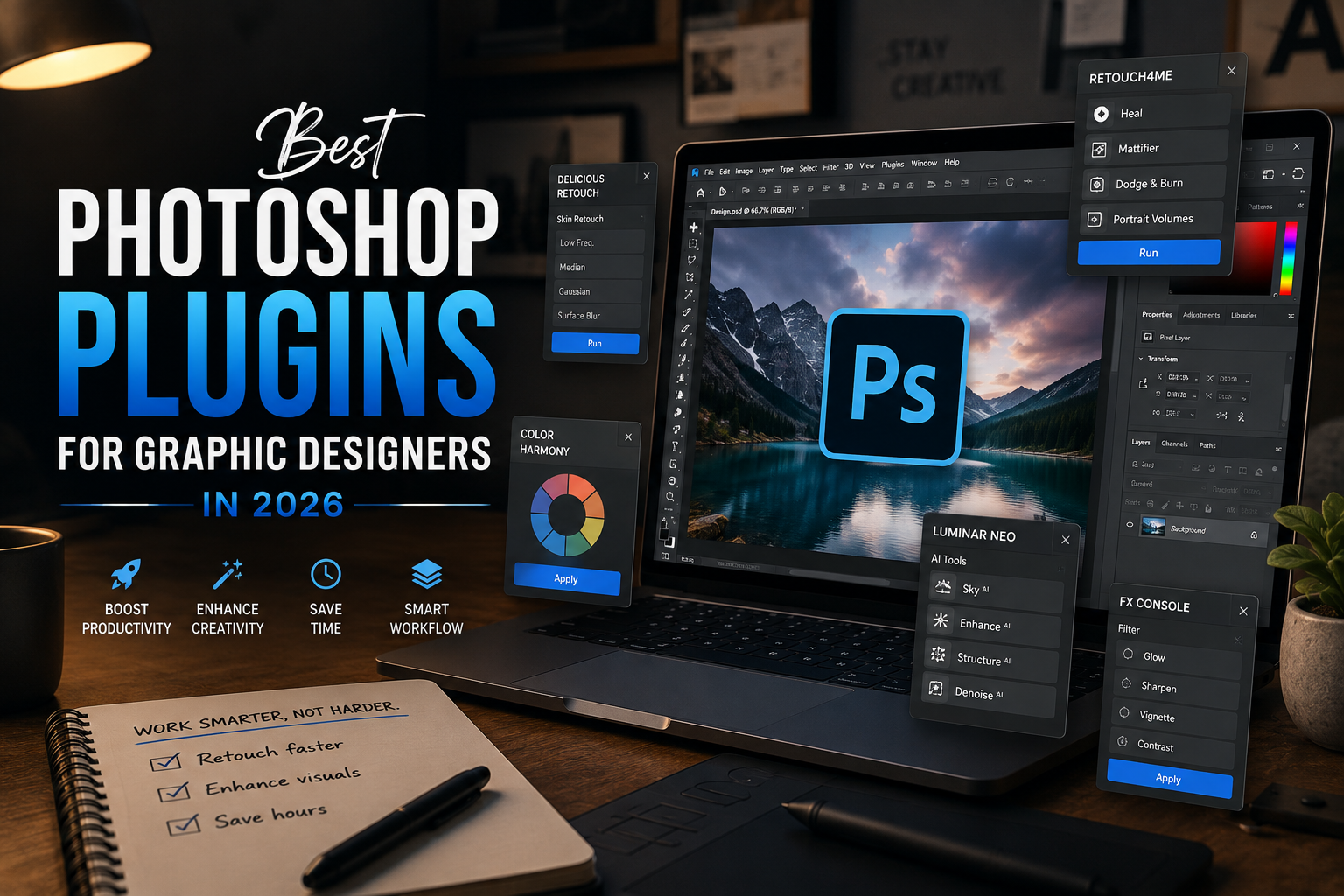
Adobe Photoshop is already one of the most powerful tools available to graphic designers.
But sometimes Photoshop doesn't do everything as quickly or conveniently as you need.
That's where plugins come in.
Photoshop's plugin ecosystem allows designers to extend the application's capabilities with additional tools for tasks such as retouching, image enhancement, layout, mockups, effects, automation, and asset management. Adobe continues to support plugins through its Creative Cloud Marketplace, where designers can search for and install extensions and plugins.
The important question isn't:
“Which Photoshop plugins exist?”
There are thousands of options.
The better question is:
“Which Photoshop plugins can actually improve a graphic designer's workflow?”
Here are some of the most useful options worth considering in 2026.
1. GuideGuide — For Faster Layouts and Grids
Good design often depends on accurate spacing, alignment, and grids.
But manually creating guides can become repetitive.
GuideGuide is designed to make creating grids and guides much faster.
It can be particularly useful when working on:
- Social media designs
- Web layouts
- Posters
- Editorial designs
- Presentations
- UI concepts
- Brand layouts
Instead of manually calculating spacing and creating guides, you can establish structured layouts much more efficiently.
Why designers should use it
If you regularly create designs that require consistent alignment, a grid-focused plugin can remove a surprising amount of repetitive work.
Best for: Layouts, grids, alignment, UI and graphic design systems.
2. Ink — For Design Handoff and Documentation
Ink is particularly useful when a Photoshop document needs to be handed over to someone else.
The plugin can document information such as:
- Layer properties
- Colors
- Typography
- Effects
- Dimensions
- Design specifications
This can be useful when working with developers or other designers who need to understand how a Photoshop design was constructed.
It has historically been recommended as a useful free Photoshop plugin for UI and design handoff workflows.
Why designers should use it
Instead of manually explaining every detail of a design, documentation can make the handoff process clearer.
Best for: UI designers, web designers, developers, team collaboration.
3. EasyMockups — For Faster Presentation and Mockups
Graphic designers often spend a lot of time presenting their work.
A logo doesn't just need to be shown on a white background.
You may want to demonstrate it on:
- Packaging
- Business cards
- Posters
- Signage
- Devices
- Products
- Stationery
Mockup-focused Photoshop tools can help speed up this process.
Instead of manually rebuilding every presentation scene, specialized mockup workflows can automate or simplify parts of the process.
Why designers should use it
If you create branding presentations or client presentations frequently, anything that reduces repetitive mockup work can save significant time.
Best for: Branding designers, packaging designers, presentation design.
4. Retouch4me — For AI-Assisted Retouching
AI has changed image retouching significantly.
Retouch4me focuses on automating various retouching tasks while keeping the workflow connected to professional image editing.
It can be particularly useful for:
- Portrait retouching
- Skin cleanup
- Dodge and burn workflows
- Object cleanup
- Professional photo enhancement
Independent 2026 plugin roundups continue to include Retouch4me among notable AI-powered retouching options.
Why designers should use it
If your work involves advertisements, portraits, product campaigns, or lifestyle imagery, AI-assisted retouching can reduce repetitive manual work.
But it shouldn't mean automatically retouching everything.
The designer still needs to decide what should be changed and what should remain natural.
Best for: Advertising creatives, portraits, campaign imagery, photo-heavy designs.
5. Topaz Photo AI — For Image Enhancement
Sometimes the biggest problem isn't your Photoshop composition.
It's the source image.
You may receive an image that is:
- Low resolution
- Slightly blurry
- Noisy
- Too small
- Not sharp enough for the final design
AI image-enhancement tools can help improve these assets before or during your Photoshop workflow.
Topaz Photo AI is one of the commonly recommended AI image-enhancement tools in current plugin roundups, particularly for sharpening, denoising, and upscaling.
Why designers should use it
Instead of immediately rejecting a client's low-quality image, you may be able to recover enough quality to make it usable.
Best for: Advertising, product design, photo manipulation, print preparation.
6. Nik Collection — For Creative Effects and Image Styling
Sometimes you don't need to build a visual effect from scratch.
You need a good starting point.
Nik Collection provides a collection of image-processing and creative effects that can be useful for different visual styles.
Current 2026 recommendations continue to position Nik Collection as one of the stronger plugin collections for creative filters and effects.
It can be useful for:
- Color grading
- Film-inspired looks
- Contrast
- Creative effects
- Black-and-white treatments
- Image finishing
Why designers should use it
It can help when you need to explore several visual directions quickly rather than manually constructing every effect.
Best for: Photo manipulation, advertising, editorial design and visual experimentation.
7. Lumenzia — For Advanced Masking
Masking is one of the most important Photoshop skills.
It's also one of the areas where designers can spend a lot of time.
Lumenzia focuses on advanced luminosity masking and selection workflows.
This can be useful when you need precise control over different brightness ranges in an image.
For example, you might want to separately affect:
- Highlights
- Shadows
- Midtones
- Bright areas
- Dark areas
Why designers should use it
For advanced compositing and image manipulation, precise masks can make complex edits much easier.
Best for: Compositing, photo manipulation, advanced masking and color work.
8. ON1 Effects — For Fast Creative Styling
ON1 Effects is another option for designers who want to explore image effects without building everything manually.
It can provide different effects and adjustments for:
- Color
- Contrast
- Texture
- Lighting
- Creative looks
Current 2026 plugin roundups continue to list ON1 Effects among notable Photoshop-compatible creative tools.
Why designers should use it
It's useful when you want to experiment with different treatments quickly.
Best for: Advertising imagery, social media creatives, photo effects and visual exploration.
9. remove.bg — For Fast Background Removal
Background removal is one of those tasks designers perform constantly.
You might receive:
- A product photo
- A portrait
- A vehicle
- Furniture
- Food photography
- E-commerce imagery
And need the subject isolated.
Automated background-removal tools can significantly reduce the amount of manual selection work required.
Why designers should use it
For simple subjects and repetitive production work, automation can be much faster than manually creating selections every time.
However, complex edges such as hair, glass, fur, and semi-transparent objects may still require manual refinement.
Best for: E-commerce, product advertising, social media creatives and quick compositing.
10. Creative Cloud and Workflow Integrations
Not every useful Photoshop plugin has to create a visual effect.
Some plugins are designed to connect Photoshop with other parts of a creative or business workflow.
Adobe's marketplace includes integrations for collaboration, project management, asset management, and other workflows.
For teams, these integrations can reduce the need to constantly switch between applications.
That can be especially useful when designers work with:
- Marketing teams
- Developers
- Project managers
- Content teams
- Clients
- Large creative departments
Which Photoshop Plugin Should You Choose?
You don't need to install ten plugins just because they exist.
In fact, installing too many can make your workflow more complicated.
Instead, choose plugins according to the work you actually do.
If you create branding:
Focus on:
- Mockup tools
- Layout tools
- Asset management
- Presentation workflows
If you create advertising creatives:
Consider:
- Image enhancement
- Retouching
- Background removal
- Creative effects
If you work with photography:
Consider:
- Retouching
- Noise reduction
- Upscaling
- Color effects
- Advanced masking
If you create UI or web designs:
Consider:
- Grid tools
- Documentation
- Alignment
- Design handoff
Free vs Paid Photoshop Plugins
Not every useful plugin needs to be expensive.
There are free plugins that can improve specific parts of a workflow, while premium tools may offer more advanced automation or specialized capabilities.
The important question isn't:
“Is this plugin free?”
It's:
“How much time will this plugin save me?”
For example, if a $50 tool saves you several hours every month, it may be more valuable than a free tool you rarely use.
Think about plugins as workflow investments, not collections of cool effects.
Do You Actually Need Photoshop Plugins in 2026?
This is an interesting question because Photoshop itself has become much more capable.
AI-powered features, automation, improved selections, generative tools, and other built-in features have reduced the need for some older plugins.
At the same time, third-party plugins continue to provide specialized functionality that Photoshop doesn't necessarily handle as efficiently.
Current 2026 plugin roundups show that the ecosystem remains useful for areas such as AI enhancement, retouching, creative effects, masking, and productivity.
So the answer is:
You don't need plugins to be a good designer.
But the right plugin can make you a more efficient designer.
How to Install Photoshop Plugins
Adobe currently recommends using the Creative Cloud desktop application's Stock & Marketplace → Plugins section to browse and install available plugins and extensions. Some plugins may require payment, while others are free.
Once installed, plugins can generally be accessed through Photoshop's Plugins menu or their associated panels, depending on the plugin.
Always check compatibility with your Photoshop version and operating system before installing.
Photoshop Plugins vs AI
This is where things become interesting.
AI is already capable of performing many tasks that previously required third-party tools.
Background removal.
Image expansion.
Object removal.
Image generation.
Retouching.
Upscaling.
Color adjustments.
So why would you still use plugins?
Because AI and plugins solve different problems.
AI can help generate or automate.
Plugins can provide specialized, repeatable workflows.
And Photoshop itself can combine both.
The modern designer's workflow might look something like:
Photoshop → AI → Plugin → Manual refinement → Final design
The goal isn't to use as much technology as possible.
The goal is to use the right technology at the right stage.
The Biggest Mistake Designers Make With Plugins
Installing too many.
Your Photoshop shouldn't become a museum of tools you downloaded once and never opened again.
Every plugin adds another option to your workflow.
Too many options can create:
- Clutter
- Slower decision-making
- More complicated workflows
- Subscription costs
- Compatibility problems
Instead, build a small toolkit around your actual work.
For example:
1 plugin for layout
1 for retouching
1 for image enhancement
1 for mockups
1 for creative effects
That's often more useful than having 50 plugins installed.
Final Thoughts
Photoshop plugins aren't about making a designer more creative automatically.
They're about making certain parts of the workflow faster, easier, or more specialized.
The best plugin is not necessarily the one with the most features.
It's the one that solves a problem you repeatedly encounter.
And in 2026, that's even more important because Photoshop itself already includes increasingly powerful AI and automation features.
Instead of asking:
“What plugins should every designer have?”
Ask:
“What part of my workflow is wasting the most time?”
Then find the tool that solves that problem.
Because professional design isn't about using more tools.
It's about building a smarter workflow with the tools that actually matter.
Frequently Asked Questions
What are the best Photoshop plugins for graphic designers?
Some useful options include GuideGuide for layouts, Ink for documentation, mockup tools for presentations, Retouch4me for AI-assisted retouching, Topaz Photo AI for image enhancement, Nik Collection for creative effects, and Lumenzia for advanced masking.
Are Photoshop plugins still useful in 2026?
Yes. Photoshop's built-in AI and automation have replaced some older plugin use cases, but third-party tools remain useful for specialized retouching, image enhancement, effects, masking, layouts, and workflow automation.
Are Photoshop plugins free?
Some are free while others are paid or subscription-based. Adobe's Creative Cloud Marketplace identifies the available pricing when installing plugins.
Do plugins make Photoshop faster?
The right plugin can make specific tasks faster, particularly repetitive or specialized tasks. However, installing too many plugins can make your workflow more complicated rather than more efficient.
Should graphic designers use AI plugins?
AI-powered plugins can be useful for repetitive tasks such as retouching, enhancement, masking, and image preparation. But designers should still control the creative direction and final decisions.
Comments 0
Join the Conversation